Solution
Safe Digital Learning
Open browsing pulls students off task, and AI tools can answer from sources the school never reviewed.
Why it matters
Teachers need to open the right resources quickly, while IT keeps control of what is approved.
How EduSphere helps
SafeStudy Web gives students one home screen of school-approved websites. Teachers open access for their classes, choose browsing presets and handle student website requests.
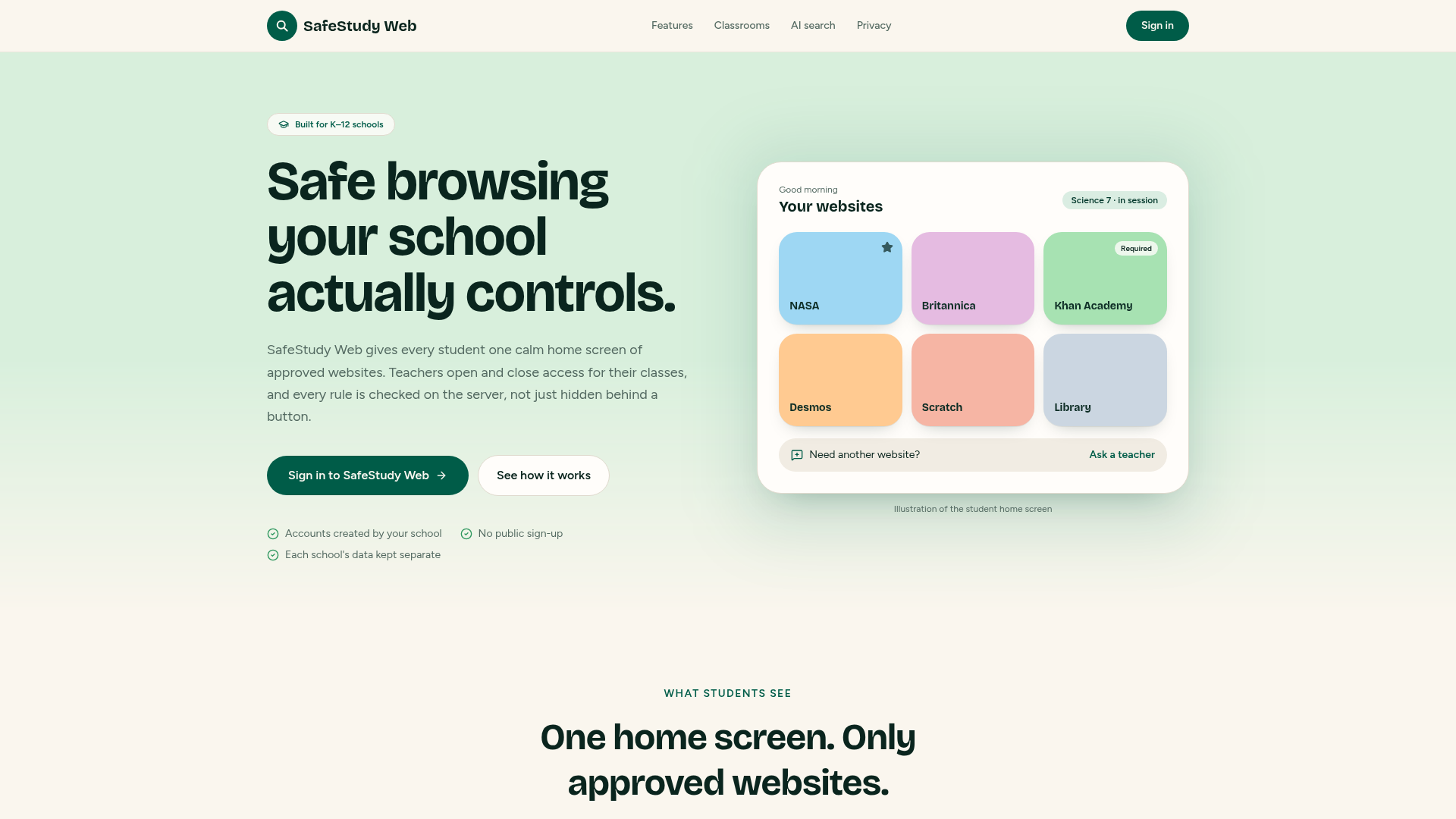
Example school workflow
Example: a 7th-grade science lesson (fictional)
- 1.The teacher starts a Research session for Science 7.
- 2.Students see only the approved sites for the lesson.
- 3.Jordan Taylor requests a museum site; the teacher approves it for the class.
- 4.Copy and paste limits reset after the session.
Illustration only. Names are fictional.
Key capabilities
- ✓School-reviewed website library
- ✓Teacher-controlled class, student or school access
- ✓Browsing presets with clipboard controls
- ✓Student website requests
- ✓Optional educational AI search, off by default, using approved sources
- ✓Activity reports and an optional Chromebook extension
Administrative considerations
- SafeStudy Web runs independently with its own school accounts and rosters
- Educational AI is off by default and enabled by the school
- Accounts are created by the school; there is no public sign-up
FAQ
Common questions
No. SafeStudy Web operates independently with its own school identities, accounts, rosters and permissions.