SafeStudy Web
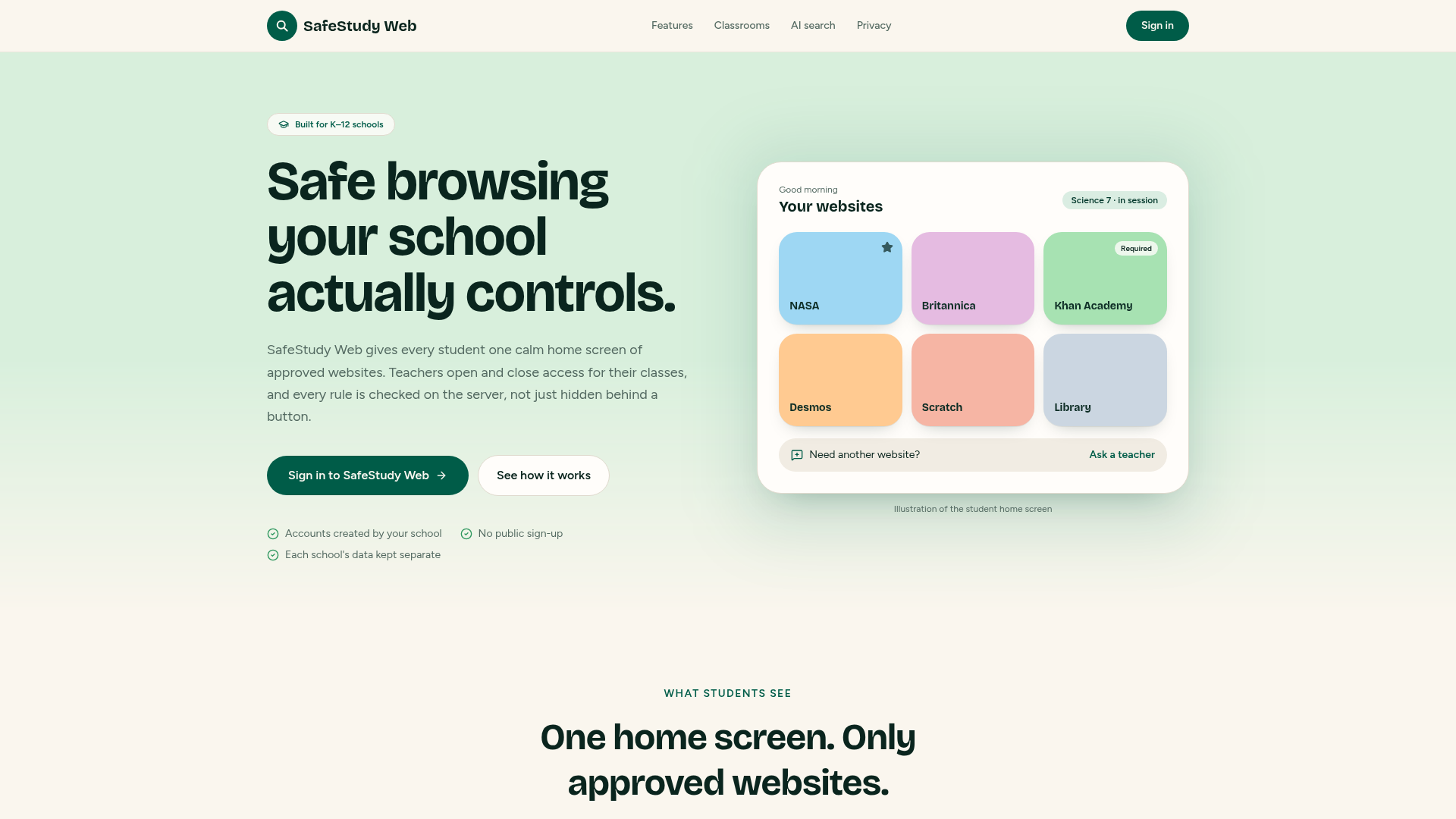
Safe browsing your school actually controls.
Students see one calm home screen of approved websites. Teachers open and close access for their classes, and every rule is checked on the server.
Who it's for
- Students
- Teachers
- School administrators
- School IT
Problems it solves
- •Open browsing pulls students away from the lesson.
- •Teachers can't quickly open just the sites a lesson needs.
- •AI tools give students answers from sources the school never reviewed.
Key features
What SafeStudy Web does
Approved website browsing
Every site on the home screen has passed a school security review.
Teacher-controlled access
Open websites for a class, the whole school or one student, with optional expiry.
Classroom browsing policies
Class sessions with copy and paste presets such as Research, Study Session or Testing.
Student website requests
Students ask a teacher for a site with a reason; the teacher approves or declines.
Educational AI search
Off by default. Answers built only from school-approved sources, with citations and flagged questions.
Admin tools & Chromebook extension
Accounts, website library review, activity reports and an optional extension for school devices.
How it works
Step by step
- 1
Build the website library
Admins review sites, set categories and approve them before anyone can open them.
- 2
Start a class session
Teachers open websites for their class and choose a preset such as Research or Testing.
- 3
Students browse approved sites
Students sign in to one home screen showing only what the school and teacher approved.
- 4
Handle requests
Students ask for a new site with a reason; the teacher approves for the student, class or school, or declines.
- 5
Review activity
Student, class and school reports built only from recorded events, with CSV and PDF export.
Example workflow
Example: a 7th-grade science research lesson (fictional)
- 1.The teacher starts a Research session for Science 7.
- 2.Students see NASA, Britannica and Khan Academy on their home screen.
- 3.Jordan T. requests a museum website; the teacher approves it for the class.
- 4.Paste is limited for the lesson and resets automatically the next day.
Illustration only — names and programs are made up.
IT & security
At a glance
- ✓Accounts are created by the school; there is no public sign-up.
- ✓Staff sign in with an authenticator app.
- ✓Permissions are checked on the server for every request.
- ✓Each school's records are kept completely apart; sensitive actions are logged.
Guided tour
Explore SafeStudy Web screen by screen
Connection status
Runs independently with its own school accounts, rosters and permissions. No universal single sign-on or automatic grade synchronization.
Purchasing
Arranged directly for your school; not included in TrackStudents school subscriptions.
See pricing →Demonstration
See SafeStudy Web in action
Ask for a live walkthrough with your team.